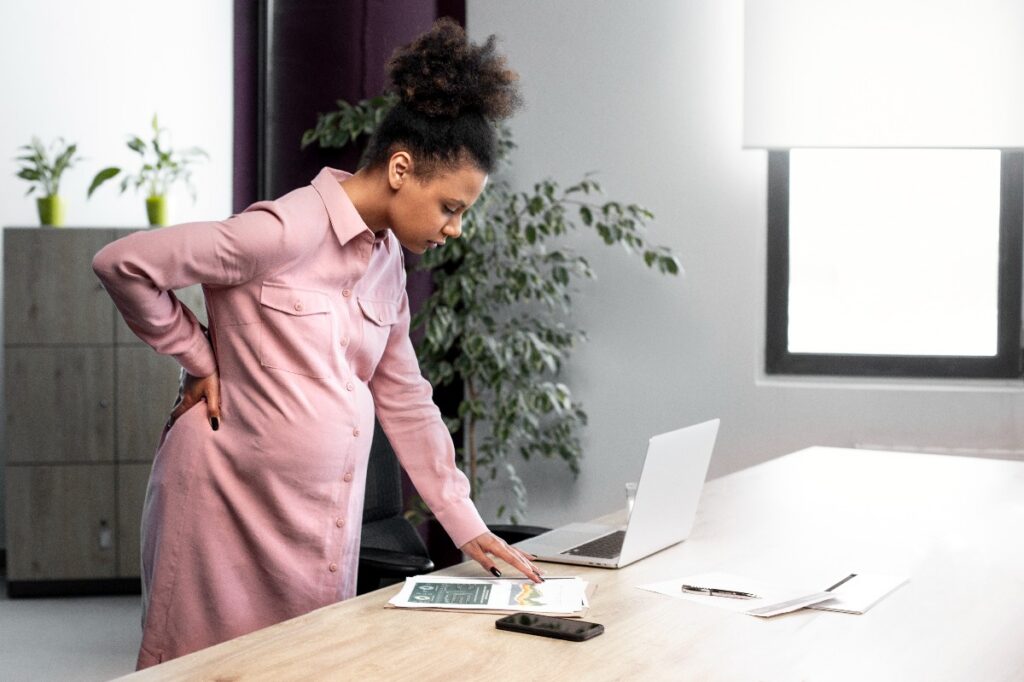

You might not realize how much your desk setup affects your posture, but small changes can make a big difference. By adjusting your chair for better lumbar support or ensuring your monitor's at eye level, you can start to alleviate discomfort that often creeps in during long hours at your desk. It's not just about comfort; these adjustments can enhance your overall productivity as well. Curious about which specific tweaks can lead to the most significant improvements?
Understanding Posture Basics
Understanding the basics of posture is essential for anyone who spends long hours at a desk. Good posture not only helps prevent discomfort but also enhances productivity. When you sit properly, you're aligning your bones and joints, which minimizes strain on your muscles and ligaments.
To maintain good posture, start by positioning your feet flat on the floor, or on a footrest if your chair is too high. Your knees should be at or slightly below hip level. Keep your back straight and shoulders relaxed but not slouched. This alignment allows your spine to maintain its natural curve, reducing the risk of back pain.
Next, pay attention to your head and neck. Your ears should align with your shoulders, and your chin should be parallel to the floor. Avoid craning your neck forward, as this can lead to stiffness and discomfort.
When it comes to your arms, keep them close to your body. Your elbows should form an angle between 90 and 120 degrees while typing or using your mouse. This positioning helps prevent strain in your shoulders and wrists.
Lastly, don't forget to take breaks. Standing up and stretching every hour can help reset your posture and keep your muscles engaged.
Incorporating these basics into your daily routine can lead to a significant improvement in your comfort and overall health while working at your desk. Start making these adjustments today, and you'll feel the difference.
Assessing Your Workspace
To create a comfortable and efficient workspace, you need to assess three key elements: desk height, chair ergonomics, and monitor positioning.
Start by adjusting your desk and chair to promote healthy posture and reduce strain.
Then, position your monitor at eye level to keep your neck relaxed and your focus sharp.
Desk Height Adjustment
Finding the right desk height is essential for maintaining a comfortable and productive workspace. When your desk is at the correct height, it promotes better posture and reduces strain on your body. To determine the ideal desk height, sit in your chair with your feet flat on the floor, and make sure your knees are about level with your hips. Your elbows should form a 90-degree angle when resting on the desk.
If your desk is too high, you might find yourself slouching or reaching up, leading to shoulder and neck discomfort. Conversely, if it's too low, you'll likely have to hunch over, which can cause back pain over time. You should adjust your desk accordingly, whether that means elevating it or finding a different workspace that suits your needs.
Also, consider your monitor's height in relation to your desk. The top of your screen should be at or just below eye level, allowing you to maintain a neutral neck position while working.
A well-adjusted desk height can greatly enhance your overall comfort and productivity, so take the time to make these adjustments for your well-being.
Chair Ergonomics Importance
When you're spending hours at your desk, the importance of chair ergonomics can't be overstated. Your chair plays a vital role in supporting your posture and overall comfort. A well-designed ergonomic chair can help reduce strain on your back, neck, and shoulders, allowing you to work more efficiently.
First, make sure your chair offers proper lumbar support. This support curves to fit the natural shape of your lower back, preventing slouching and discomfort. Adjust the height so your feet rest flat on the ground, with your knees at a right angle. If your chair height isn't adjustable, consider using a footrest to achieve the correct position.
Also, check the seat depth. You should be able to sit back against the chair while leaving a few inches between the back of your knees and the seat. Armrests can also contribute to comfort—ensure they're at a height that allows your shoulders to relax and your elbows to stay close to your body.
Finally, take breaks! Even the best chair can't replace the benefits of standing up and moving around every so often. Prioritizing your chair's ergonomics is significant for maintaining good posture during long hours at your desk.
Monitor Positioning Tips
A well-ergonomically designed chair sets the stage for good posture, but the positioning of your monitor is equally important for your comfort and productivity. Start by placing your monitor at eye level. This way, you won't have to tilt your head up or down, which can strain your neck. Your eyes should naturally align with the top third of the screen.
Next, keep the monitor about an arm's length away. This distance helps reduce eye strain and allows you to view the screen comfortably. If you're using multiple monitors, position them so you can easily shift your gaze from one to another without excessive head movement.
Consider the angle of your monitor, too. Tilt it slightly back—about 10 to 20 degrees—so you can see the screen without glare. If possible, use an anti-glare screen protector to minimize reflections.
Finally, make sure that your monitor is clean and free from dust. A clear view not only enhances your focus but also helps prevent squinting and eye fatigue.
With these tips, you can create a workspace that supports better posture and boosts your productivity.
Chair Selection and Setup
Choosing the right chair and setting it up properly can make a significant difference in your comfort and productivity at a desk job. Start by selecting a chair that supports your lower back. Look for adjustable lumbar support to maintain the natural curve of your spine. An ergonomic chair is often a great choice, as it's designed to fit your body and promote good posture.
Next, adjust the height of your chair so that your feet rest flat on the floor, or on a footrest. Your knees should be at a 90-degree angle or slightly lower than your hips. This setup reduces strain on your legs and lower back. If your chair has armrests, make sure they're positioned so your arms rest comfortably at your sides without raising your shoulders.
The seat depth is another important factor. You should be able to sit back in your chair while leaving a few inches between the edge of the seat and the back of your knees. This space prevents pressure on the thighs and improves circulation.
Lastly, don't overlook the material of your chair. Breathable fabrics can keep you comfortable throughout the day, while cushioning should provide support without being too soft.
Monitor Height and Position
To maintain comfort and avoid strain, your monitor should be at eye level, about an arm's length away.
Adjust the angle and tilt so the screen's top aligns with your line of sight, reducing glare and neck tension.
Let's explore these guidelines to guarantee your workspace supports your well-being.
Ideal Monitor Height
When setting up your workspace, ensuring your monitor's height is ideal can greatly reduce strain on your neck and eyes. You want the top of your screen to be at or just below eye level. This positioning allows you to keep your head aligned with your spine, minimizing unnecessary neck strain.
To achieve this, adjust your monitor so you can comfortably look at the screen without tilting your head up or down. If you find yourself craning your neck or leaning forward, it's a sign that your monitor's height needs adjustment.
You should also sit at a distance of about an arm's length from the screen, allowing for comfortable viewing while keeping your neck in a neutral position.
If you use a laptop, consider using a stand or an external monitor to achieve the correct height. Adjusting the angle of your monitor can also help; tilting it slightly back can reduce glare and make it easier to see.
Screen Distance Guidelines
Finding the right screen distance is essential for maintaining comfort and preventing strain during long hours at your desk. Ideally, your monitor should be about an arm's length away, which typically ranges from 20 to 30 inches. This distance allows you to see the screen clearly without leaning in or squinting, reducing eye fatigue.
Make sure your screen is positioned so that the top of it's at or just below eye level. This helps you maintain a neutral neck position and encourages proper posture. If your monitor is too far away, you might find yourself leaning forward, which can lead to discomfort in your back and shoulders. Conversely, if it's too close, you could strain your eyes.
To check your screen distance, sit back comfortably in your chair and extend your arm. If your fingers can just touch the screen, you've found a good spot. Adjust your chair or the monitor height as needed to achieve this distance.
Angle and Tilt
Adjusting the angle and tilt of your monitor is crucial for reducing strain on your neck and eyes.
When your monitor's position is incorrect, it can lead to discomfort and long-term issues. By making a few simple adjustments, you can improve your workspace ergonomics considerably.
Here are three key points to take into account when positioning your monitor:
- Monitor Height: Your monitor should be at eye level. The top of the screen should align with your eyes, so you don't have to tilt your head up or down to see it clearly.
- Tilt Angle: The monitor should tilt slightly backward (about 10 to 20 degrees). This position allows you to maintain a neutral neck position while reducing glare from overhead lights.
- Distance: Verify your monitor is about an arm's length away. This distance helps prevent eye strain and allows you to focus comfortably without leaning forward.
Keyboard and Mouse Placement
The right keyboard and mouse placement can greatly impact your comfort and productivity during long hours at a desk.
To start, your keyboard should be positioned at a height that allows your elbows to rest comfortably at a 90-degree angle or slightly obtuse. This minimizes strain on your wrists and shoulders. Ideally, your forearms should be parallel to the floor, and your wrists should remain in a neutral position—meaning they aren't bent up or down.
When it comes to your mouse, place it as close to the keyboard as possible. This way, you won't have to reach too far, which can lead to discomfort and tension in your shoulder and arm. Keep your mouse at the same level as your keyboard to maintain consistency in your arm position. If you're right-handed, position the mouse to the right; if you're left-handed, place it to the left.
Additionally, consider using a wrist rest if you find your wrists are getting tired. A good wrist rest can provide extra support and help keep your wrists in a neutral position.
Also, remember to take breaks. Every 30 minutes, give your hands and arms a rest by stretching or changing positions. This simple practice can help reduce fatigue and improve your overall posture at your desk.
Desk Arrangement Tips
When setting up your desk, it's crucial to layout everything in a way that promotes efficiency and comfort. A well-arranged desk can notably improve your posture and reduce strain during long working hours.
Here are three key tips to enhance your desk arrangement:
- Monitor Position: Place your monitor at eye level, about an arm's length away. This setup helps you maintain a neutral neck position, reducing the risk of strain. If you're using a laptop, consider a monitor stand or a docking station to elevate the screen.
- Keyboard and Mouse: Verify your keyboard and mouse are at a comfortable height. Your elbows should be bent at about 90 degrees, and your wrists should remain straight while typing or clicking. Keep them close to your body to minimize reaching and maintain a relaxed posture.
- Use a Document Holder: If you often refer to documents while typing, use a document holder. Position it next to your monitor at the same height to prevent neck strain from looking down repeatedly. This simple addition can improve your workstation's ergonomics.
Stretching and Movement Breaks
Incorporating stretching and movement breaks into your work routine can drastically improve your overall well-being and productivity. Sitting for long periods can lead to stiffness and discomfort, but taking short breaks to stretch and move can help counteract these issues. Aim to stand up and move around every hour, even if it's just for a few minutes.
Simple stretches can be done right at your desk. Try neck rolls, shoulder shrugs, or wrist stretches to relieve tension. Stand up, reach for the ceiling, and lean side to side to open up your body. Incorporating these movements keeps your muscles engaged and helps maintain circulation, which can enhance your focus and energy levels.
Don't underestimate the power of walking. A quick stroll around your office or even to get a glass of water can refresh your mind and body. If possible, consider walking meetings or standing desk options to integrate movement into your workday seamlessly.
Set reminders on your phone or use apps designed to prompt you to take breaks. It's easy to lose track of time when you're focused, but those breaks are essential. Not only do they help prevent physical discomfort, but they can also boost creativity and problem-solving skills, making you more effective at your job.
Long-term Posture Habits
Establishing long-term posture habits is essential for maintaining your health and productivity at work.
Poor posture can lead to chronic pain, fatigue, and decreased focus. By developing good habits, you can prevent these issues and enhance your overall well-being.
Here are three key habits to incorporate into your daily routine:
- Mind Your Chair: Choose an ergonomic chair that supports your lower back. Sit back fully in the chair, and keep your feet flat on the floor. If your feet don't reach the ground, use a footrest to guarantee proper alignment.
- Screen Height Matters: Position your computer screen so that the top of the monitor is at or just below eye level. This helps you maintain a neutral neck position and reduces strain. If you find yourself leaning in or looking down, adjust your screen accordingly.
- Keyboard and Mouse Placement: Keep your keyboard and mouse close enough that your elbows can stay close to your body, forming a 90-degree angle when you're typing. This prevents shoulder strain and encourages a relaxed posture.
Conclusion
By making simple adjustments to your workspace, you can greatly improve your desk job posture and reduce discomfort. Make sure your chair supports your lower back, position your monitor at eye level, and keep your keyboard and mouse within easy reach. Don't forget to take regular breaks for stretching and movement. These small changes can lead to better alignment and a more enjoyable work experience. Prioritizing your posture today sets the foundation for long-term comfort and productivity.